The Essential Navigation App for Korea University Students & Seoul Visitors
Why Google Maps isn't enough in Korea — and what to use instead

Planning your first trip to Seoul — or just arrived?
Before you do anything else, install Naver Map (네이버지도) on your phone.
Most travelers rely on Google Maps, but here's the truth: Google Maps has significant limitations in Korea. Due to South Korean mapping data regulations, Google Maps cannot provide accurate walking directions, real-time bus locations, or detailed local business information in Korea.
Naver Map fills that gap — and then some. It's the app that Korean locals use every single day, and once you have it, getting around Seoul becomes dramatically easier.
Whether you're a student arriving at Korea University, a tourist exploring Seoul for the first time, or a visitor staying in Anam-dong — this guide will walk you through everything you need to know.
1. Why Naver Map Instead of Google Maps in Korea?
Feature Naver Map Google Maps
| Walking directions | ✅ Accurate to alleyways | ⚠️ Often incomplete |
| Real-time bus locations | ✅ Highly accurate | ⚠️ Frequently inaccurate |
| Subway transfer guidance | ✅ Detailed | ✅ Available |
| Korean restaurant reviews | ✅ Thousands of local reviews | ⚠️ Limited info |
| English language support | ✅ Full English interface | ✅ Available |
| Offline use | ⚠️ Limited | ✅ Better offline support |
| Price | ✅ Free | ✅ Free |
💡 The short version: Use Google Maps for offline maps and international navigation. Use Naver Map for everything inside Korea — buses, walking, restaurants, and local info. Having both installed is the ideal setup.
2. How to Download Naver Map — Step by Step
= For Android Users =
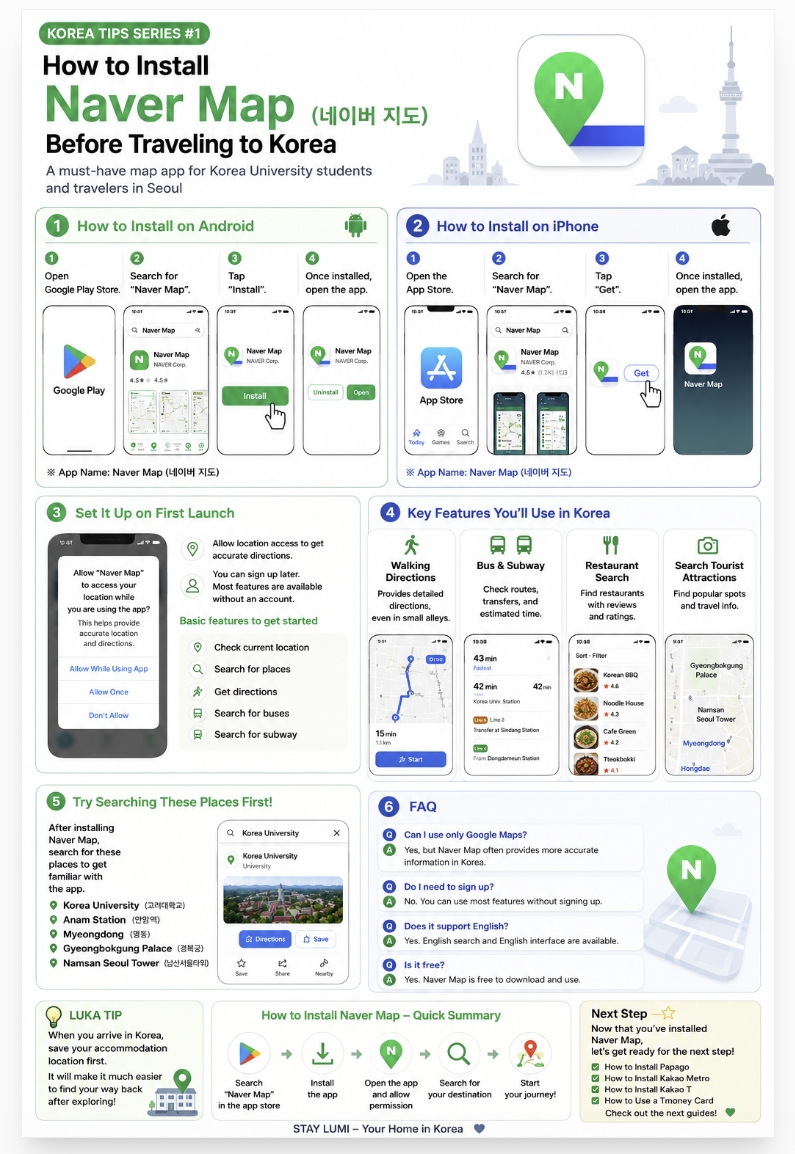
- Open Google Play Store
- Search for "Naver Map"
- Tap Install
- Wait for the download to complete
- Open the app
= For iPhone Users =
- Open the App Store
- Search for "Naver Map"
- Tap Get
- Confirm with Face ID or your password
- Open the app once installed
✅ The app is completely free to download and use. No subscription required.
3. First-Time Setup — What to Do When You Open the App
When you first open Naver Map, it will ask for a few permissions.
Location permission → Allow this This is essential for the app to show your current location and give accurate directions.
Account / Sign-in → You can skip this You do not need to create an account. Most features work perfectly without logging in.
Language setting → Switch to English
- Tap the menu icon (☰) in the top right
- Go to Settings
- Select Language → English
The app will now display in English, making it much easier to navigate for first-time visitors.
4. The Features You'll Use Most in Seoul
▶ Walking Directions
Naver Map guides you through Seoul's narrow alleyways and back streets with pinpoint accuracy. This is where it truly outperforms Google Maps in Korea — especially in neighborhoods like Anam-dong where small lanes and shortcuts matter.
▶ Subway & Bus
Real-time subway and bus information, transfer guidance, and estimated arrival times — all in one place. The app even tells you which subway car to board so your transfer at the next station is as short as possible.
▶ Restaurants & Cafes
Thousands of local Korean restaurant reviews, ratings, menus, and photos — far more comprehensive than Google Maps for Korean dining. Filter by cuisine type, distance, price range, and hours.
▶ Tourist Attractions & Opening Hours
Search any major Seoul attraction and get accurate opening hours, admission prices, and visitor tips. Always check before you go — hours change seasonally.
▶ Taxi Integration
Search your destination on Naver Map, then tap the taxi icon to call a Kakao T taxi directly from within the app. No need to stand on the street and wave — your taxi comes to you.
▶ Nearby Search
Tap "Around Me" to instantly see what's nearby — convenience stores, ATMs, pharmacies, coffee shops, and more. Incredibly useful when you're in an unfamiliar neighborhood.
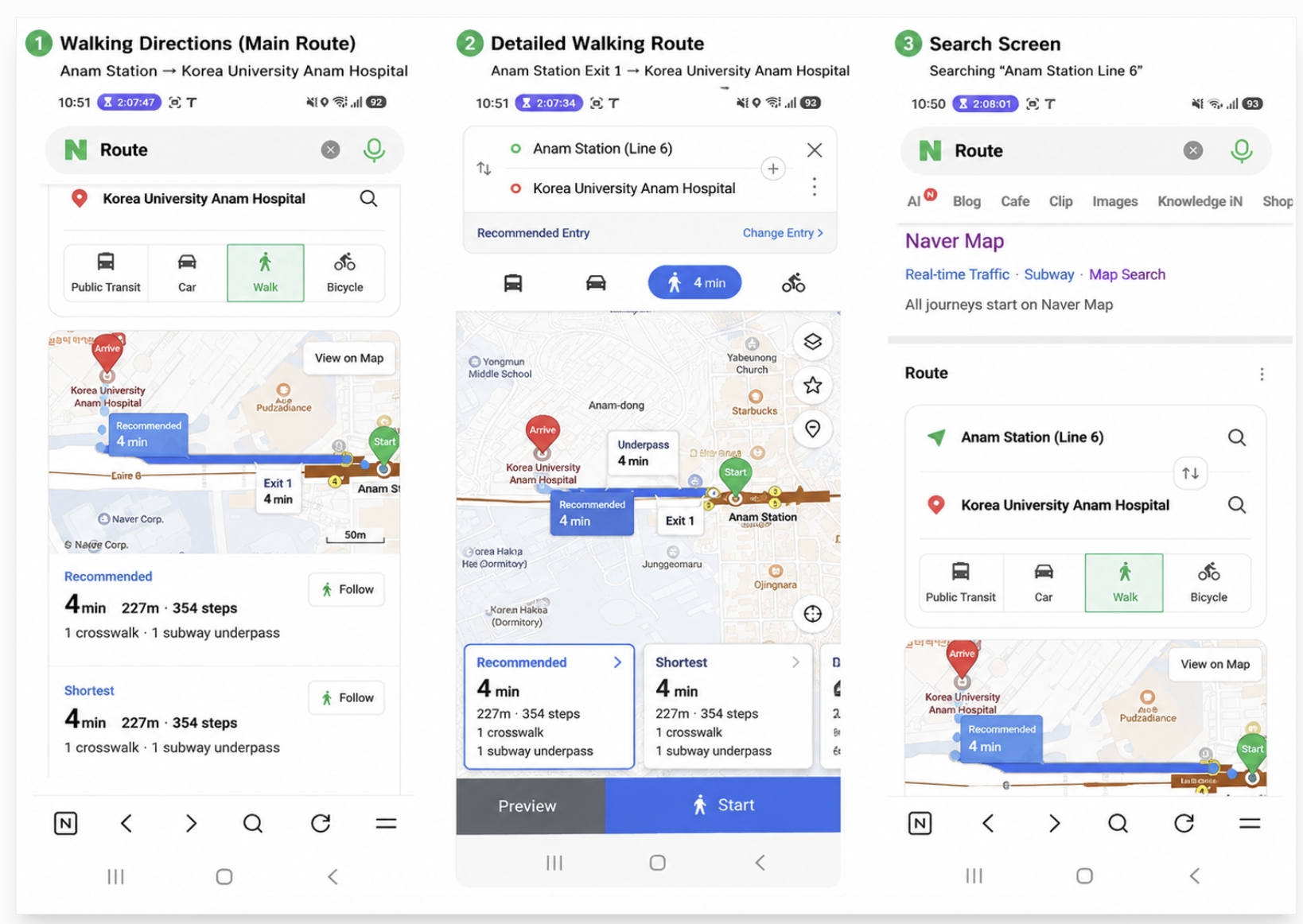
5. Search These Places First
Once you have Naver Map installed, try searching these locations to get familiar with the app:
Search Term Location
| Korea University | 고려대학교 — main campus entrance |
| Anam Station | 안암역 — Line 6 |
| Myeongdong | 명동 — shopping & street food |
| Gyeongbokgung Palace | 경복궁 — historic palace |
| Namsan Seoul Tower | 남산서울타워 — iconic landmark |
| Korean Forest Garden | 남산 한국숲정원 — newest green space |
| Hongdae | 홍대 — nightlife & culture |
Searching just these seven locations will make you completely comfortable with the app before you even arrive in Korea.
💡 Host Tip from STAY Lumi
STAY Lumi is located near Anam Station and Bomun Station (Line 6).
To book your stay, please visit us directly on Airbnb.
👉 airbnb.co.kr/h/lumi2026
6. FAQ — Naver Map Korea
Q: Can I just use Google Maps in Korea? You can, but it's not recommended as your only navigation app. Google Maps has mapping data restrictions in South Korea, which means walking directions and bus information are often inaccurate. Naver Map is far more reliable for getting around Korean cities.
Q: Do I need to create an account to use Naver Map? No. You can use almost all features without signing in — including directions, search, and real-time transit information.
Q: Is Naver Map available in English? Yes. The app fully supports English language interface and English search terms. You can switch to English in the app settings.
Q: Is Naver Map free? Yes, completely free to download and use on both Android and iPhone.
Q: What's the difference between Naver Map and Kakao Map? Both are excellent Korean navigation apps. For international visitors, Naver Map tends to have better English language support, making it the recommended choice for first-time travelers.
Q: Does Naver Map work without internet? Some basic features work offline, but real-time bus and subway information requires an internet connection. We recommend purchasing a Korean SIM card at Incheon Airport before you arrive — it makes using Naver Map (and everything else) much easier.
Q: Can I use Naver Map to find restaurants in English? Yes. You can search restaurant names and neighborhoods in English, and many listings include English descriptions, menus, and photos.
7. Quick Reference — Naver Map Essentials
Item Details
| App name | Naver Map (네이버지도) |
| Price | Free |
| Language | English supported |
| Android | Download from Google Play Store |
| iPhone | Download from App Store |
| First step | Allow location permission |
| Key features | Walking, bus, subway, restaurants, nearby search |
| Tip | Save your accommodation to favorites on arrival |
Final Thoughts
Getting around Seoul doesn't have to be stressful.
With Naver Map installed and set up before you arrive, you'll have accurate walking directions, real-time bus and subway information, and access to thousands of local restaurant reviews — all in English.
Whether you're navigating the streets around Korea University, exploring Myeongdong, or making your way back to your accommodation in Anam-dong at the end of a long day — Naver Map has you covered.
Install it before you land. You'll wonder how you ever traveled without it.
Have questions about getting around Seoul? Leave a comment below — happy to help! 👇
📚 More Seoul Travel Guides
How to Use a Tmoney Card in Seoul
How to Use a Tmoney Card in SeoulEasy Transportation Guide for Korea University Students and First-Time Visitors If you are visiting Seoul for the first time, a Tmoney card is one of the easiest ways to use public transportation in Korea.This guide is espe
ncss66.com
Seoul's Best-Kept Secret: The New Korean Forest Garden on Namsan Just Opened (2026)
A brand-new nature escape in the heart of Seoul — traditional Korean gardens meet modern design Planning a trip to Seoul? Or already here and looking for something beyond the usual tourist spots?On June 27, 2026, the Seoul Metropolitan Government officia
ncss66.com
How to Get from Incheon Airport to Anam-dong, Seoul (2026) — Subway, Bus & Taxi Guide
The easiest route to Korea University, Anam Station, and STAY Lumi — from an experienced local host If you're visiting Korea University, staying in Anam-dong, or heading to a guesthouse near Anam Station (Line 6) — one of the first questions you'll hav
ncss66.com
'Korean Life Tips' 카테고리의 다른 글
| Seoul Subway Guide: How to Take the Subway in Korea (0) | 2026.07.06 |
|---|---|
| Naver Map vs Google Maps in Korea — Which App Do You Actually Need? (2026) (0) | 2026.07.03 |
| How to Buy a SIM Card at Incheon Airport: Korea eSIM & Pocket WiFi Guide (0) | 2026.07.02 |
| How to Get from Incheon Airport to Anam-dong, Seoul (2026) — Subway, Bus & Taxi Guide (0) | 2026.07.01 |
| How to Use a Tmoney Card in Seoul (0) | 2026.06.25 |


